Optimize Performance
>-
Mobile devices have tighter resource constraints than desktop or web. Understanding the mobile scene limits and how to preview them helps you ship a scene that runs smoothly for the widest audience.
Mobile Scene Limits
The table below shows the limits enforced when running on mobile. Reaching a soft limit triggers a warning in the performance panel; reaching a hard limit blocks the scene from loading.
| Metric | Soft Limit | Hard Limit |
|---|---|---|
| Triangles | 1,000,000 | 1,200,000 |
| Entities | 4,800 | 6,000 |
| Meshes (bodies) | 2,400 | 3,000 |
| Geometries | 1,000 | 2,000 |
| Materials | 400 | 500 |
| Textures | 400 | 500 |
| Colliders | 1,200 | 1,500 |
| VFX emitters | 8 | 10 |
| Live particles | 25,000 | 50,000 |
| Light sources | 8 | 16 |
| Shadow lights | 2 | 4 |
| Content size | 120 MB | 150 MB |
| External content | 40 MB | 50 MB |
| Memory (process RSS) | 1,638 MB | 2,048 MB |
| Draw calls | 1,000 | 2,000 |
| Performance (higher is better) | 90% | 85% |
Lights and particles
The light rows count authored scene content, not what the engine ends up running. Each graphic profile activates only a budget of the nearest light sources (0 on Very Low up to 8 on High) and may disable shadows entirely — so a scene that authors 20 lights still pays their scene cost even though at most 8 emit light at once. Author to the limit, don't rely on the runtime budget.
Particles are additionally capped at runtime: 5,000 particles per emitter and 50,000 per scene. Anything authored above those caps is silently clamped, so exceeding them only wastes scene budget.
Preview Mobile Performance
You can check your scene’s mobile performance directly from Creator Hub without deploying to a physical device.
- Open your scene in Creator Hub.
- Select Preview > Show QR Code for Mobile
- Open the Scene Limits Preview from the top right icon in your phone (monitor with statistics in red).
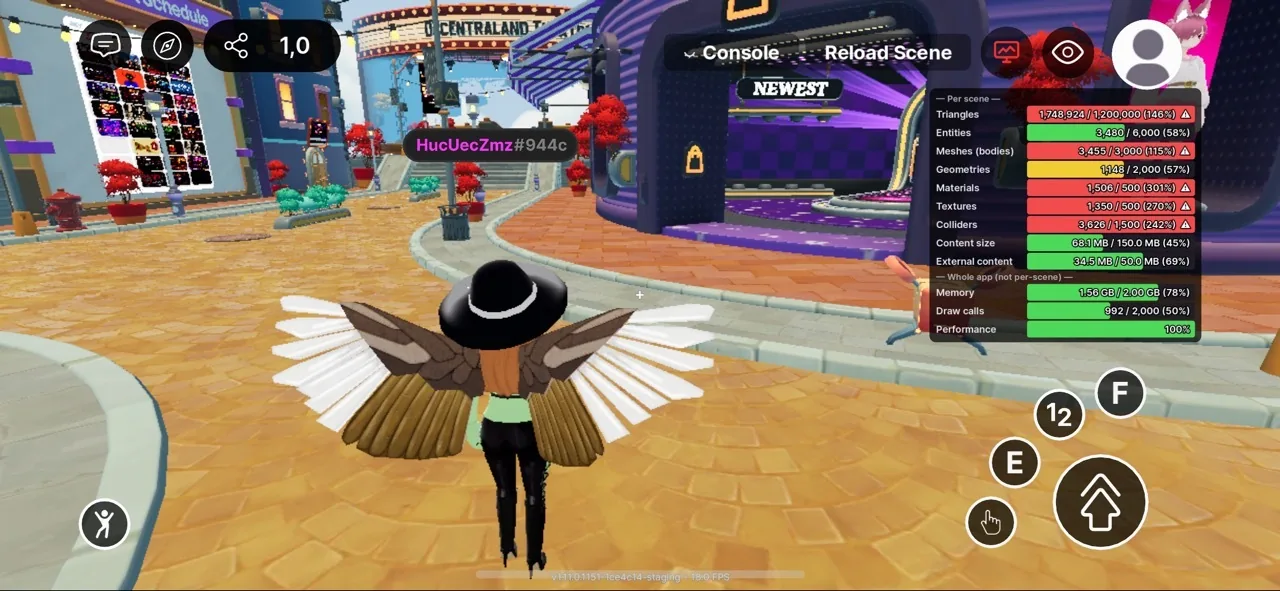
Keep Performance above 90% on High Graphics
The Performance value is a percentage of the FPS budget set by the active graphic profile. A score of 100% means the scene is hitting the full FPS target.
Always test on a mid-spec device like the Samsung Galaxy A54 and aim for a Performance score above 90% on the High graphic profile. This ensures a smooth experience for the majority of mobile players. See Hardware Requirements for reference devices.
You can change the graphic profile from In-Game Menu → Settings → Graphics → set Dynamic Graphics to Off → switch Profiles.