On-screen Controls
Configure the native on-screen touch controls for your scene.
On the mobile client, players interact with your scene through a set of native on-screen controls — a virtual joystick, a crosshair, and a gamepad of buttons. The TouchScreenControls component lets your scene reshape that HUD: declutter it, hide the joystick or crosshair, change what the large central button does, swap a button's glyph for your own icon, or hide buttons entirely and replace them with your own UI.
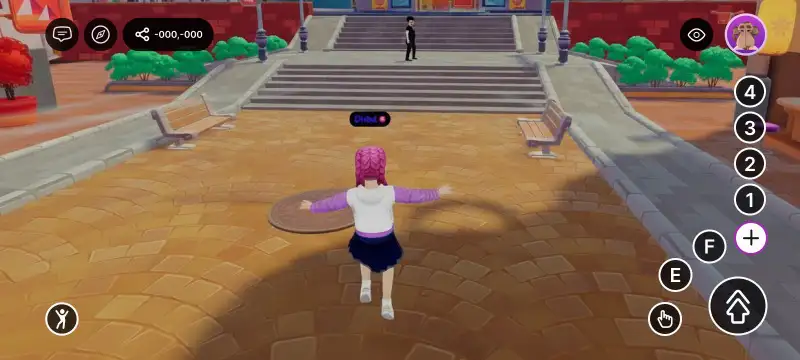
The default on-screen controls, before any customization
The component is applied automatically while the player is inside your scene and reverts to the defaults the moment they leave, so scenes that don't use it are unaffected. It only affects platforms with native on-screen controls: it's a no-op on desktop and has no effect in VR.
What shows by default
From SDK 7.32.0, every scene starts with three gamepad buttons visible:
IA_JUMP, the large central buttonIA_POINTER, the interaction buttonIA_PRIMARY, the E button
IA_SECONDARY and IA_ACTION_3 to IA_ACTION_6 start hidden. You only need TouchScreenControls when you want something other than this.
📔 Note: The three-button default and the showDefault() helper need SDK 7.32.0 or later. On earlier versions all eight buttons show unless your scene hides some, and showDefault() doesn't exist, so showAll() is the only way to bring buttons back.
The SDK writes that default set once at scene start, just before the first frame, and skips it when your scene already chose its own buttons. Your scene counts as having chosen if either:
- One of the button visibility helpers already ran:
hideAll(),showAll(),showDefault()orhide(). - The component on the root entity already lists at least one button, for example because your scene wrote it with
createOrReplaceat the top level ofindex.ts, outsidemain().
hideJoystick(), showJoystick(), hideCrosshair(), showCrosshair() and setMainAction() don't count: the default button set still applies alongside them.
Your main() function runs after that write, so anything you do there lands on top of the default set. A helper like hide() merges with it, while createOrReplace replaces the whole list with yours.
To bring the hidden buttons back, call showAll() for all eight. showDefault() restores the default set and leaves your icons, joystick, crosshair and main action untouched.
import { TouchScreenControls } from '@dcl/sdk/ecs'

// Show every on-screen button, including the 1 / 2 / 3 / 4 buttons
TouchScreenControls.showAll()
How the button layout works
The gamepad buttons form a single priority stack. The order is fixed:
IA_JUMPIA_POINTERIA_PRIMARY(E)IA_SECONDARY(F)IA_ACTION_3(1)IA_ACTION_4(2)IA_ACTION_5(3)IA_ACTION_6(4)
The on-screen positions are fixed too. The visible buttons fill those positions from the top of the stack down — so what you change is which buttons are visible and which one leads, not their order.
| When you… | The controls… |
|---|---|
| Hide a button (any button, including jump) | Every lower-priority button moves up to fill the gap. Hide jump and IA_POINTER takes the central spot. |
| Change nothing | The default set applies: IA_JUMP is the large central button, with IA_POINTER and IA_PRIMARY in the slots around it. |
Set a main button with mainAction |
That action jumps to the front and becomes the central button; every other button keeps its normal order. |
| Set a main button that is also hidden | Hiding wins — the button stays hidden. |
| Leave 5 or fewer buttons visible | All of them show directly (the central button plus up to four around it); there is no "+" menu. |
| Leave more than 5 buttons visible | The "+" takes the last slot, so four show directly (the central button plus three) and the rest sit behind the "+" overflow toggle. |
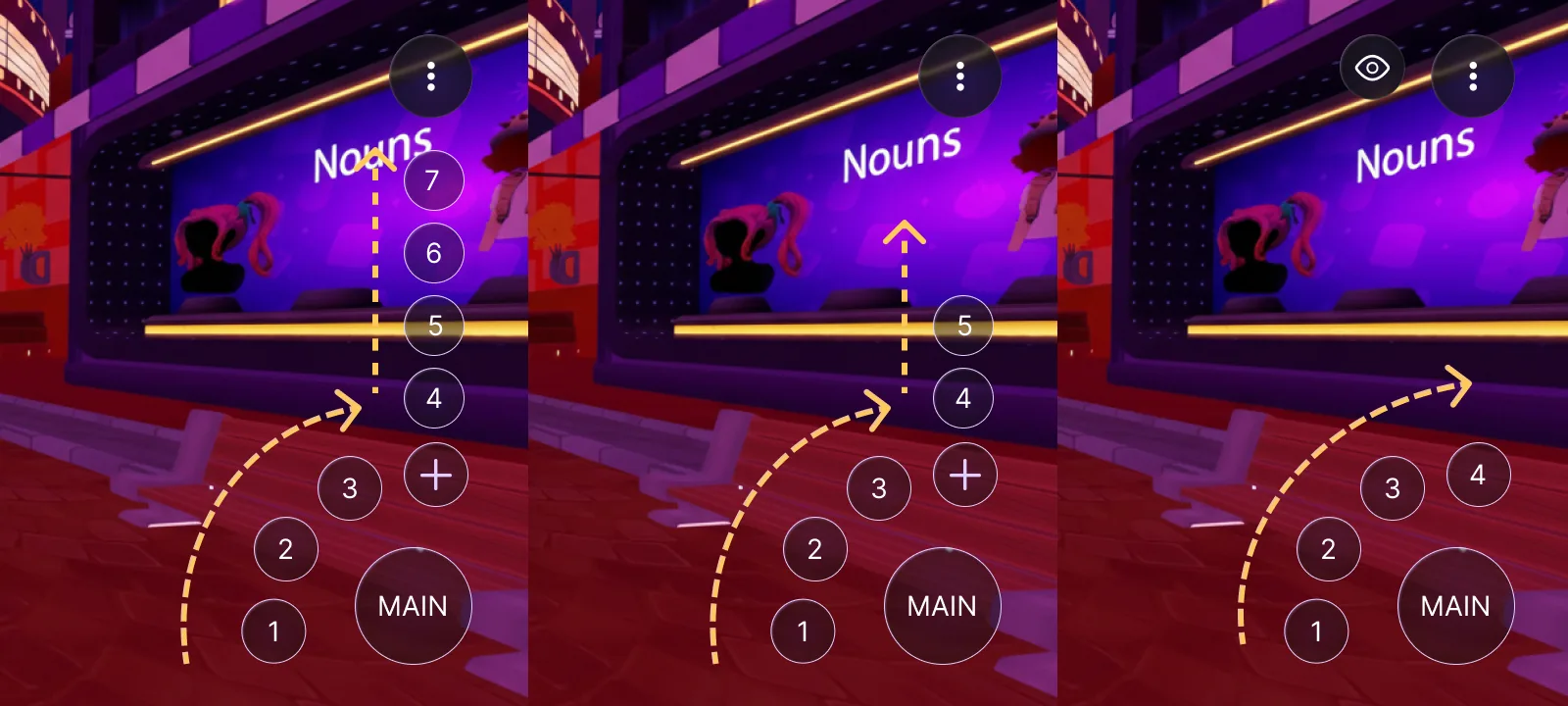
How the buttons reflow with the visible count. Left (7 buttons): the main button, an arc of 1–3, and the "+" holding the overflow (4–7) in a column that climbs upward. Center (5 buttons): the same arc, with a shorter overflow column (4–5) behind the "+". Right (4 buttons): all four show directly and the "+" disappears.
The 1/2/3/4 buttons start hidden. showAll() brings them back, but that leaves eight visible buttons, so the lowest-priority ones end up behind the "+". To put a numbered button directly on screen, keep the visible count at five or fewer: show only the buttons your scene actually uses.
Common tasks
TouchScreenControls ships a set of convenience helpers. Each one writes the component onto the scene's RootEntity (where the client reads it) and merges with the current value, so you can call them from anywhere.
Change the main button — make the large central button trigger a different action:
import { TouchScreenControls, InputAction } from '@dcl/sdk/ecs'

export function main() {
	TouchScreenControls.setMainAction(InputAction.IA_PRIMARY)
}
Hide the joystick or crosshair — remove the movement stick and/or the aiming reticle, and bring them back with their show counterparts:
TouchScreenControls.hideJoystick()
TouchScreenControls.hideCrosshair()

// and to bring them back:
TouchScreenControls.showJoystick()
TouchScreenControls.showCrosshair()
Hide specific buttons — pass the actions you want gone (the rest cascade up):
TouchScreenControls.hide([InputAction.IA_SECONDARY, InputAction.IA_JUMP])
Hide every button, show every button, or go back to the default set:
TouchScreenControls.hideAll()     // no gamepad buttons at all
TouchScreenControls.showAll()     // all eight buttons
TouchScreenControls.showDefault() // jump, pointer and primary only
These three only affect the gamepad buttons. They don't restore a hidden joystick or crosshair, and they don't change your custom icons or your main action. Use showJoystick() / showCrosshair() for those.
Replace a button's icon — for full control (custom icons, several changes at once), write the raw component on engine.RootEntity:
import { engine, TouchScreenControls, InputAction } from '@dcl/sdk/ecs'

export function main() {
	TouchScreenControls.createOrReplace(engine.RootEntity, {
		hideCrosshair: true,
		mainAction: InputAction.IA_PRIMARY,
		touchInputs: [
			{
				inputAction: InputAction.IA_PRIMARY,
				icon: { tex: { $case: 'texture', texture: { src: 'images/grab.png' } } },
			},
		],
	})
}
The helpers at a glance:
| Helper | What it does |
|---|---|
setMainAction(action) |
Sets which action the large central button triggers. |
hideJoystick() |
Hides the native virtual joystick. |
showJoystick() |
Shows the native virtual joystick again. |
hideCrosshair() |
Hides the on-screen crosshair / reticle. |
showCrosshair() |
Shows the on-screen crosshair / reticle again. |
hide(actions) |
Hides the given gamepad buttons (merged into the current config). |
hideAll() |
Hides every gamepad button. |
showAll() |
Shows all eight gamepad buttons (clears the button hide list). Does not affect the joystick/crosshair. |
showDefault() |
Restores the default set: jump, pointer and primary visible, secondary and actions 3 to 6 hidden. Keeps icons, joystick, crosshair and main action as they are. |
Properties
Write these directly when you use createOrReplace:
| Property | Type | Description |
|---|---|---|
hideJoystick |
boolean | Hides the native virtual movement joystick. |
hideCrosshair |
boolean | Hides the on-screen crosshair / reticle. |
mainAction |
InputAction | Moves this action to the front of the stack, making it the large central button; the other buttons keep their order. Only gamepad actions are valid (see below). When unset, the first visible button (IA_JUMP by default) leads. See How the button layout works. |
touchInputs |
array | Per-button overrides. Writing this field replaces the whole list, so any button you leave out is shown with its default glyph, including the ones that start hidden. |
Each touchInputs entry has:
| Field | Type | Description |
|---|---|---|
inputAction |
InputAction | Which on-screen button this entry configures. |
hide |
boolean | Hides this button. Default is false (shown). Any button can be hidden, including IA_JUMP — the rest cascade up to fill its place. |
icon |
TextureUnion (optional) | Overrides the button glyph with a scene image. Use the texture variant with a content-mapped src (an image included in your scene) — { tex: { $case: 'texture', texture: { src: 'images/grab.png' } } }. Only scene-content paths are supported (not external URLs, avatar or video textures). For the jump button this replaces all of its dynamic states (jump / double-jump / glide). If the path can't be resolved, the built-in glyph is used. |
Which actions map to which buttons
The InputAction values here are the same ones used across Input on mobile and Click events. These are the actions that map to on-screen buttons:
| InputAction | On-screen button |
|---|---|
IA_JUMP |
The large central button (default) |
IA_POINTER |
The interaction button |
IA_PRIMARY |
The E button |
IA_SECONDARY |
The F button |
IA_ACTION_3 / IA_ACTION_4 / IA_ACTION_5 / IA_ACTION_6 |
The 1 / 2 / 3 / 4 buttons |
IA_ANY and IA_MODIFIER are meta values — they don't map to a button and can't be used here.
Example
To hide the joystick, keep the F and numbered buttons hidden, and give the central jump button a custom icon shipped in your scene:
import { engine, TouchScreenControls, InputAction } from '@dcl/sdk/ecs'

export function main() {
	TouchScreenControls.createOrReplace(engine.RootEntity, {
		hideJoystick: true,
		touchInputs: [
			// This list replaces the default one, so the buttons that normally start
			// hidden have to be listed here too
			{ inputAction: InputAction.IA_SECONDARY, hide: true },
			{ inputAction: InputAction.IA_ACTION_3, hide: true },
			{ inputAction: InputAction.IA_ACTION_4, hide: true },
			{ inputAction: InputAction.IA_ACTION_5, hide: true },
			{ inputAction: InputAction.IA_ACTION_6, hide: true },
			{
				inputAction: InputAction.IA_JUMP,
				icon: { tex: { $case: 'texture', texture: { src: 'images/banana.png' } } },
			},
		],
	})
}
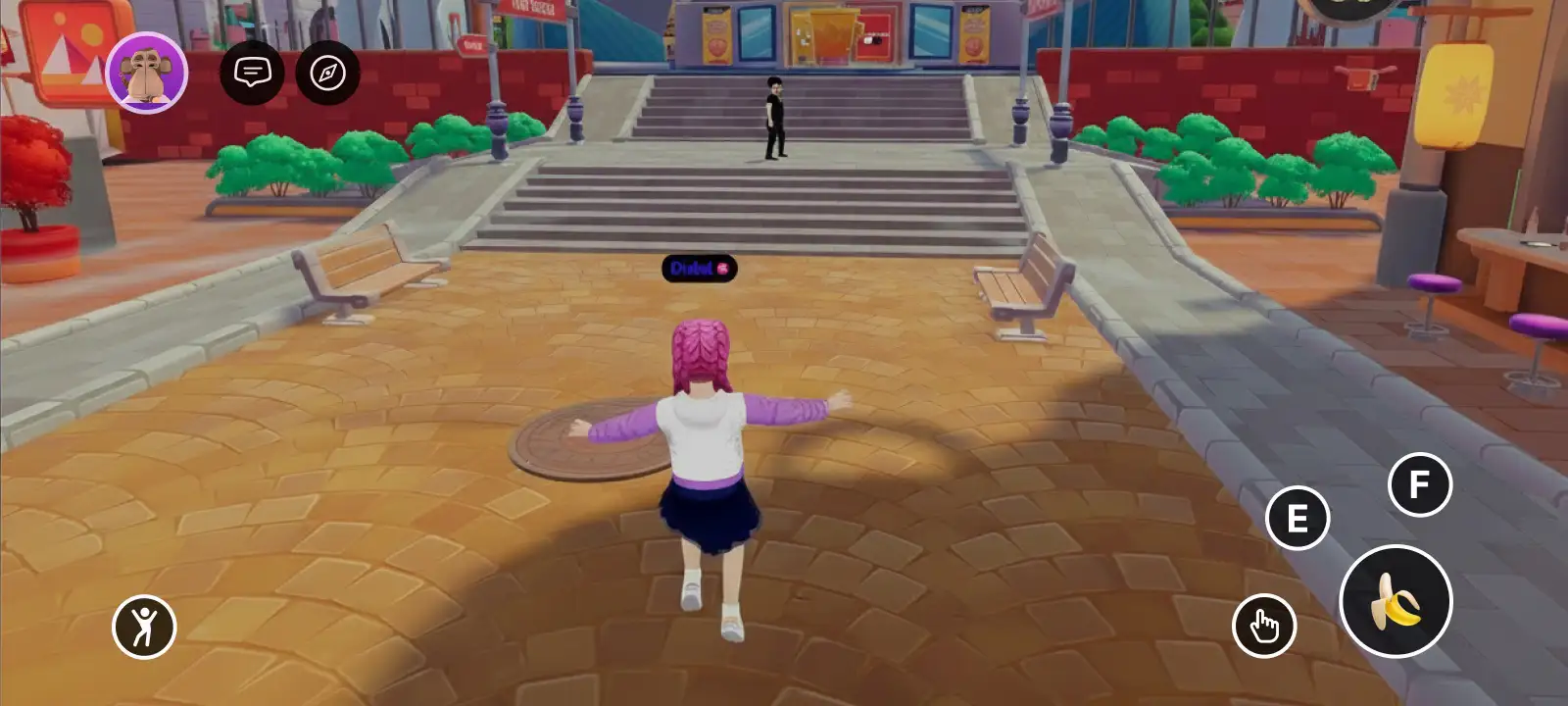
The result: joystick gone, numbered buttons hidden (so the "+" disappears), and the jump button re-iconed
To replace the native controls entirely, hide them here and build your own touch buttons with UI Input Binding.